Using Zoom
Please join the Zoom classroom 10 minutes early to check your audio and video.
Close email and other programs to ensure the best performance.
Keep your microphone muted when you are not speaking.
Maintain the same level of courtesy and professionalism expected in an in-person class or meeting.
Use tools such as chat, polls, reactions, and the “raise hand” feature to engage with the session.
Be prepared to be called on directly by the instructor, as you would in a traditional classroom setting.
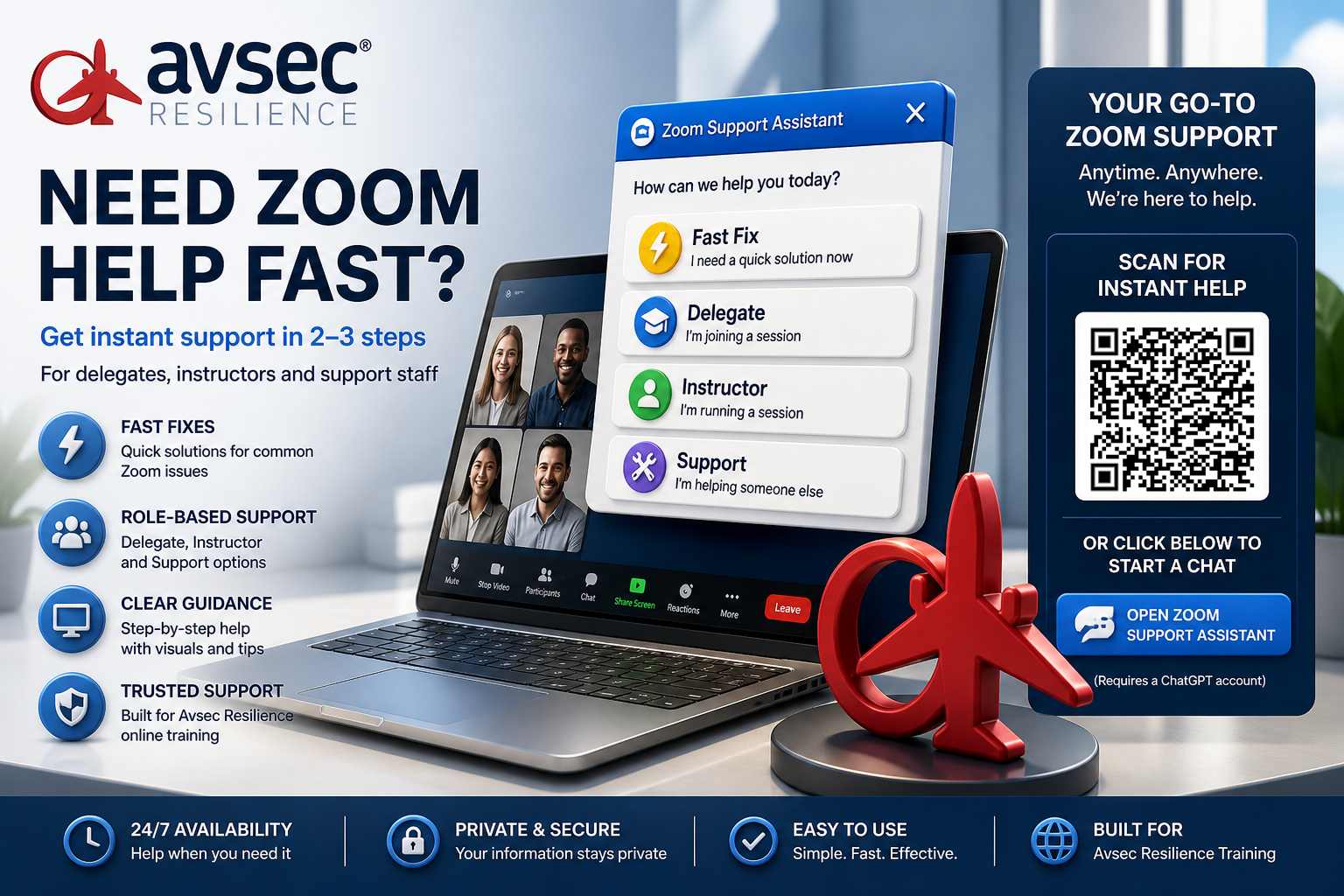
Our ChatGPT Zoom Support Assistant helps you quickly fix common issues like audio, camera, or connection problems, so you can get into your session without delay.
Choose from:
• ⚡ Fast Fix (quick troubleshooting)
• 🎓 Delegate / Attendee support
• 🧑🏫 Instructor guidance
• 🛠 Support staff tools
Requires a ChatGPT account, free or paid
LIVE virtual classroom technical requirements & best practices
Our Zoom-based virtual classrooms provide real-time, instructor-led learning where you can interact, ask questions, and collaborate with others. Each course is designed to keep you engaged and supported through:
Live interactive sessions that encourage active participation
Q&A opportunities with your instructor throughout the day
Independent study time for projects, reading, research, or videos
Pre-course materials (reading or assignments) for some courses
How to test audio and video in Zoom
-
Open the Zoom app.
-
Click on your profile picture (top right) → Settings.
-
Go to Audio and click Test Speaker (you should hear a sound).
-
Click Test Mic, speak into your microphone, and check if playback works.
-
Shortcut for mute/unmute during class:
-
Alt + A(Windows) /Command + Shift + A(Mac)
-
-
Go to Video and check that your camera feed appears clearly.
-
Shortcut for starting/stopping video:
-
Alt + V(Windows) /Command + Shift + V(Mac)
-
-
On the preview screen, select Test Speaker and Microphone before clicking “Join with Computer Audio.”
-
In the meeting, click the small arrow (˅) next to the microphone or camera icons to switch devices if needed.
Hardware requirements
-
Minimum: 2 Mbps download / 1 Mbps upload
-
Recommended: Wired connection for best stability
-
Test your internet speed before class:
-
Click Go / Start
-
Confirm your speeds meet the minimum requirements
Required for full use of Zoom tools (breakout rooms, screen sharing, whiteboards)
Tablets and smartphones are not recommended as a primary device
-
A headset with built-in microphone is recommended for clear audio
-
Avoid relying on built-in laptop microphones whenever possible
-
Strongly recommended for participation and interaction
-
Instructors may request cameras on during discussions or activities
-
Shortcut for start/stop video:
-
Alt + V(Windows) /Command + Shift + V(Mac)
-
Helpful for viewing training materials while keeping Zoom open
If you have two devices connected to Zoom, only use one for audio (if you hear an echo, a second device maybe connected)
Software requirements
-
Download the Zoom Desktop Client: https://zoom.us/download ↗️
-
Always update to the latest version before your class
-
Supported operating systems: Windows, macOS, Linux
-
Supported browsers (for joining via browser):
-
Preferred: Chrome or Edge,
-
Second: Firefox
-
Third: Safar, as may have restrictions.
Browser requirements: support.zoom.com/hc/en/article?id=KB0058323 ↗️
-
PDF reader for course materials
-
Microsoft Office or Google Workspace for assignments/projects (as required)
Accessible functions on Zoom
-
Go to Settings → Accessibility (in the Zoom desktop client).
-
You can adjust:
-
Closed caption font size
-
Screen reader alerts
-
Keyboard shortcut customization
-
Zoom window scaling
-
Additional information on accessibility, is available, on the Avsec Resilience ® accessibility page
-
Closed Captioning (CC):
-
Hosts can enable manual, automated (AI-generated), or third-party captioning.
-
Participants can adjust caption size in their settings.
-
Live transcription is also available.
-
-
Sign Language Interpretation:
-
Hosts can assign interpreters whose video can be pinned or spotlighted.
-
Viewers can resize and reposition interpreter video windows.
-
-
Chat and Nonverbal Feedback:
-
Participants can use chat, reactions, and raised hand features for nonverbal communication.
-
-
Screen Reader Support:
-
Zoom works with major screen readers such as JAWS, NVDA, VoiceOver, and TalkBack.
-
Interface elements (like mute/unmute, participants list, etc.) are labeled for accessibility.
-
-
Keyboard Shortcuts:
-
Most Zoom functions can be accessed with the keyboard.
-
Examples:
-
Alt + A(Windows) /Command + Shift + A(Mac) → Mute/unmute -
Alt + V/Command + Shift + V→ Start/stop video -
Alt + S/Command + Shift + S→ Share screen
-
-
-
High Contrast Mode:
-
Zoom honors system-level contrast settings and color inversion modes.
-
-
Screen Magnification:
-
Supports system zoom tools (e.g., Windows Magnifier, macOS Zoom, etc.).
-
Participants can also adjust text size in the chat.
-
-
Simplified Controls:
-
Option to hide non-video participants or minimize controls.
-
Visual cues for who is speaking (active speaker highlight).
-
-
Focus Mode:
-
Helps reduce distractions by only showing participants’ videos to the host and co-host.
-
-
Waiting Room Messages:
-
Hosts can display custom messages that are clear and easy to understand.
-
-
Full Keyboard Navigation:
-
Every function (join, chat, reactions, etc.) can be accessed via shortcuts.
-
Tab and arrow keys navigate between interface elements.
-
-
Voice Control Compatibility:
-
Works with OS-level voice command software (like Dragon NaturallySpeaking, Windows Speech Recognition, or Apple Voice Control).
-
-
Touch Accessibility (Mobile):
-
Zoom mobile app supports gesture navigation and screen reader compatibility on iOS and Android.
-
Zoom translation and interpretation options
🔧 Host setup (before the meeting)
-
Sign in to the Zoom web portal: https://zoom.us/signin ↗️
-
Go to Settings → In Meeting (Advanced).
-
Turn on Language Interpretation.
-
When scheduling a meeting:
-
Click Schedule a Meeting → expand Show Advanced Options.
-
Check ✅ Enable language interpretation.
-
Add interpreters’ email addresses and languages.
-
🎙️ During the meeting
-
As host, click Interpretation on the meeting toolbar.
-
Start the interpretation session.
-
Participants will see a globe 🌐 icon — they can choose their language channel (e.g., English, Spanish).
-
Interpreters speak on their channel while participants hear either the interpreter or the original audio at a lower volume.
Zoom’s AI Companion or certain paid plans (like Zoom Workplace Pro Plus and higher) allow real-time translated captions.
🔧 Host setup
-
Sign in to your Zoom web portal.
-
Go to Settings → Meeting → In Meeting (Advanced).
-
Turn on:
-
✅ Automated captions (Live transcription)
-
✅ Translated captions (choose available languages)
-
🧑💻 During a meeting
-
Click Show Captions or Live Transcript on the toolbar.
-
Click the small up-arrow (˄) next to the Captions icon → Select Translation Language.
-
Choose your preferred translation (e.g., English → French).
-
Participants will see real-time translated text at the bottom of their screen.
Note:
You must have the latest version of Zoom to use AI translations.
Hosts control whether captions and translations are available.
Interpretation requires manual setup, while AI captions are automatic once enabled.
-
The speaker can communicate effectively in most routine and some non-routine situations.
-
Pronunciation, structure, vocabulary, and fluency are generally understandable even if not perfect.
-
Occasional errors occur, but meaning is rarely obscured.
-
The speaker can manage misunderstandings and repair communication when needed.
Reference: ICAO Doc 9835 (2nd edition) — Manual on the Implementation of ICAO Language Proficiency Requirements.
Equivalent levels:
-
CEFR: B1–B2
-
IELTS: 4.5–5.5
-
TOEFL iBT: 42–71
-
TOEIC: 550–780
Open Incognito / Private Browsing
Open Incognito / Private Browsing lets you browse without saving history, cookies, or form data on your device after you close the window.
People commonly use it to:
Log into another account without signing out
Prevent history and form data from being stored
Test websites without cached data or cookies
Use shared/public computers more safely
Avoid sites affecting future recommendations
Note: It doesn’t make you anonymous—websites, employers, or internet providers can still track activity.
Below is a how to guide for each browser
1.Open Opera.
2.Click the O menu (top-left).
3.Select New Private Window.
- Shortcut:
- Windows/Linux → Ctrl + Shift + N
- Mac → ⌘ + Shift + N
1.Open Chrome.
2.Click the three dots (⋮) in the top-right corner.
3.Select New Incognito Window.
- Shortcut:
- Windows/Linux → Ctrl + Shift + N
- Mac → ⌘ + Shift + N
1.Open Edge.
2.Click the three dots (⋮) in the top-right corner.
3.Select New InPrivate window.
- Shortcut:
- Windows/Linux → Ctrl + Shift + N
- Mac → ⌘ + Shift + N
1.Open Firefox.
2.Click the three horizontal lines (☰) in the top-right corner.
3.Select New Private Window.
- Shortcut:
- Windows/Linux → Ctrl + Shift + P
- Mac → ⌘ + Shift + P
1.Open Brave.
2.Click the three lines or dots (≡ or ⋮) in the top-right corner.
3.Select New private window.
- Shortcut:
- Windows/Linux → Ctrl + Shift + N
- Mac → ⌘ + Shift + N
Note: Brave also offers Private Window with Tor for extra privacy
Mac:
1.Open Safari.
2.Click File in the menu bar.
3.Select New Private Window.
- Shortcut: ⌘ + Shift + N
iPhone/iPad:
1.Open Safari.
2.Tap the tabs button (two overlapping squares).
3.Tap [X] Tabs or Start Page at the bottom.
4.Select Private → then tap + to open a private tab.
Environment recommendations
-
Quiet, well-lit space with minimal distractions
-
Reliable power source (avoid battery-only)
-
Notify others in your workplace/ household of your class times
-
Take breaks away from your screen during scheduled pauses
Learning experience expectations
Expect frequent interaction (polls, chat, breakout groups). You may be asked to contribute every 3–5 minutes.
Small group discussions and activities are part of the course.
Follow the same respect and participation norms as in-person training.
Classes are designed in shorter, focused segments with regular breaks.
Some sessions include follow-up work, reflection tasks, or group projects. (Dependent on client requirements)
A facilitator or co-host may be available to help with technical or chat management.
Frequently asked Questions (FaQ) – Using Zoom for online training
No. You can join directly using the meeting link we provide. A Zoom account is only required if you’re hosting a session.
Simply download the Zoom app from Zoom’s official website ↗️ or your app store, then follow the quick installation steps.
When you join, Zoom will prompt you to connect audio and video. You can test and select the correct microphone, speakers, and camera from the toolbar.
During the Course; Yes. Switch to “Gallery View” to see multiple participants at once.
Breakout Rooms let your instructor divide the class into smaller groups for discussions or activities. You’ll be guided back to the main session when the activity ends.
Yes. Your instructor may enable tools that let you draw, write, or brainstorm directly on a shared screen or digital whiteboard.
Absolutely. Instructors often use Zoom’s polling feature for quick quizzes, surveys, or to keep sessions interactive.
You can:
-
Use the chat box to type your question
-
Click “Raise Hand” to get the instructor’s attention
-
Speak directly if the instructor invites discussion
Some courses are recorded for later review. You’ll always be informed if recording is enabled, and you’ll receive details on how to access the replay.
Attendance is automatically recorded when you log in. Your instructor may also use polls or in-class activities as part of participation tracking.
Troubleshooting
-
Check that your camera isn’t being used by another application.
-
Select the correct camera under Zoom’s Video Settings.
-
Restart Zoom or update to the latest version.
-
Use headphones to reduce background noise and echo.
-
Make sure only one device in the room is connected to audio.
-
Test your microphone and speakers from the Zoom toolbar.
Check you’re connected to audio
- Look at the bottom-left corner of the Zoom window.
- If you see “Join Audio” or a red line through the speaker icon 🔇 — you’re not connected.
- Click Join Audio → select Join with Computer Audio (or “Call via Device Audio” on mobile).
Check speaker volume
Make sure your device’s volume is turned up (computer, headset, or phone).
Click the arrow (˅) next to the microphone icon in Zoom → choose “Test Speaker & Microphone.”
If you don’t hear the test sound, select another speaker from the dropdown until you do.
If none work, check your audio device connection (Bluetooth or cable).
Leave and rejoin the meeting
Sometimes Zoom’s audio can glitch.
Leave the meeting → rejoin → click Join with Computer Audio again.
-
Move closer to your Wi-Fi router or use a wired connection.
-
Close other applications using the internet (e.g., streaming or downloads).
-
Turn off your camera if your connection is unstable.
-
Make sure the host has enabled participant screen sharing.
-
Select the correct screen or window when prompted.
-
Double-check the meeting link or Meeting ID and password.
-
Ensure you have installed the Zoom app (desktop or mobile).
-
Restart your device and try again.
-
Check your internet connection – Make sure you’re online and your connection is stable.
-
Update the Zoom app – Outdated versions may block access; download the latest update from Zoom’s website or app store.
-
Firewall or VPN issues – If you’re on a work or school network, a firewall or VPN might block Zoom. Try disconnecting from the VPN or switching to a personal network.
-
Browser issues (if joining without the app) – Clear your browser cache, or try a different browser such as Chrome or Edge.
-
Wrong time zone – Double-check the session start time in your local time zone https://www.worldtimebuddy.com/ ↗️
-
Capacity reached – If the session has a participant limit, you may see an error message when the class is full. In that case, contact support.
Switch between view modes
- Click “View Options” (at the top of the Zoom window, near the green “You are viewing [Name]’s screen” bar).
- From the dropdown menu, choose:
- Fit to Window – makes the shared screen fit your Zoom window (good for seeing the whole slide).
- Original Size – shows the presentation at its true resolution (may require scrolling if it’s too large).
- Side-by-Side Mode – shows both the shared screen and participants’ videos next to each other.
Resize the Shared Screen
- In Side-by-Side Mode, hover between the shared screen and video panels until you see a vertical line with arrows.
- Click and drag the line left or right to make the slides bigger or smaller.
Full Screen Mode
Click View → Enter Full Screen (or press Alt + F on Windows / Command + Shift + F on Mac).
Exit full screen the same way or by pressing Esc.
During a Meeting: Click the Chat icon in your meeting controls toolbar, or press Command + Shift + H on a Mac or Alt + H on Windows to display it.
Note: Do you have another chat functions open (example: teams/ Google Meet), if so, consider closing them and than trying the short cut
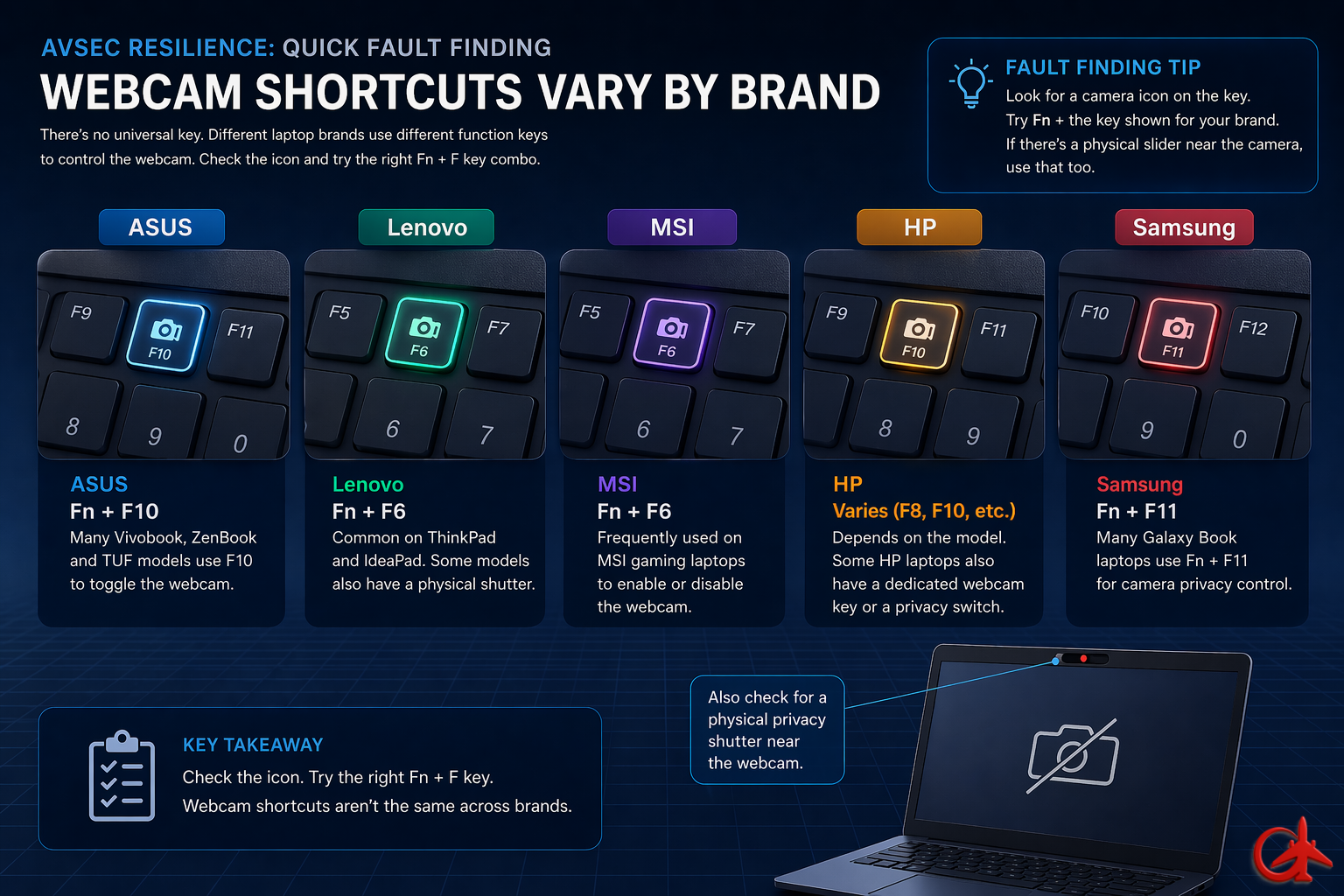
Quick internet tips
Shut down YouTube, Netflix, cloud backups (Google Drive, OneDrive, Dropbox), or downloads running in the background.
Ask family/housemates to pause streaming, gaming, or large downloads during your call.
-
If you’re on Wi-Fi → move closer to the router.
-
If possible → plug in an Ethernet cable for instant stability.
-
On mobile → switch to 4G/5G data if your Wi-Fi is weak.
-
Turn video off if the call starts lagging.
-
Use “Turn off HD” in Zoom video settings.
Quick Wi-Fi fixes for Zoom
Even a few meters can reduce lag. Walls, doors, and floors weaken the signal.
-
-
If your router has both 2.4 GHz and 5 GHz networks:
-
Use 5 GHz if you’re close → faster and less crowded.
-
Use 2.4 GHz if farther away → stronger range.
-
-
-
-
Move away from microwaves, cordless phones, or Bluetooth speakers.
-
Turn off Wi-Fi on other unused devices (old tablets, spare phones).
-
Higher is better → raise your laptop/phone or router off the floor.
-
Open the door if you’re in a closed room.
Disable HD video and virtual backgrounds → lowers Wi-Fi load.
Background and renaming
On Zoom Desktop (Windows/Mac)
1.Open Zoom and sign in.
2.Click your profile picture (top right) → choose Settings.
3.In the sidebar, select Background & Effects (sometimes called Virtual Background).
4.You’ll see a few default images. To add your own:
1.Click the + (Add Image or Video) button.
2.Choose a file from your computer.
5.Select the image, and it will replace your background instantly.
👉 If your computer doesn’t support virtual backgrounds, Zoom may require a green screen.
Use a high-resolution image (16:9 ratio works best, e.g., 1920×1080).
On Zoom Desktop (Windows/Mac)
Open Zoom and sign in.
- Click your profile picture (top right) → Settings.
- In the left menu, go to Background & Effects (or Virtual Background).
- Under Virtual Backgrounds, select Blur.
- Your background will instantly blur while keeping you in focus.
Blurring works best if your device supports Zoom’s background effects (most modern laptops and phones do).
💻 On a Computer
-
Locate your profile picture file on your computer.
-
Rotate it 180°:
-
Windows:
-
Right-click the image → Open with → Photos.
-
Click the Rotate icon twice (each click = 90°).
-
-
Mac:
-
Open the image in Preview.
-
From the menu, choose Tools → Rotate Left twice.
-
-
-
Save the rotated image.
-
Go to your Zoom profile: https://zoom.us/profile
-
Click Change under your profile picture and upload the new, rotated image.
📱 On Mobile (Android / iPhone)
-
Open your profile picture in your Photos or Gallery app.
-
Tap Edit → Rotate, and turn it 180° (two 90° rotations).
-
Save the picture.
-
Open the Zoom app → Settings → Profile → Profile Photo → Change Photo.
-
Upload your rotated image.
Before a meeting:
1. Open the Zoom app and sign in.
2. Click your profile picture (top-right) → Settings.
3. Go to Profile → click Edit My Profile (this opens a browser).
4. Click Edit next to your name → enter your new display name → Save.
During a meeting:
1. In the meeting, click Participants in the toolbar.
2. Hover over your name → click More → Rename.
3. Type your new name → click OK.
If it is some one's else system. Return the “profile name to the original setting, at the end of each day.
Before a meeting:
1. Open Zoom app → sign in.
2. Tap your profile picture (top-right).
3.Tap Display Name → edit it → Save.
During a meeting:
1. Tap Participants.
2. Tap your name → choose Rename.
3. Enter new name → tap OK.
Before a meeting:
1. Open the Zoom app → sign in.
2. Tap your profile picture (top-left).
3. Tap Display Name → enter a new name → Save.
During a meeting:
1. Tap Participants at the bottom.
2. Find your name → tap it → choose Rename.
3. Enter new name → tap Done.
How to align Your Zoom profile with LinkedIn
- Zoom does not have a native LinkedIn integration
- Profile matching is manual or via third-party tools
- Any “connection” depends on shared details (name, email, apps)
- Use the same full name on Zoom and LinkedIn
- Add a matching profile photo
- Keep your job title/company aligned
- Ensure your Zoom account email matches your LinkedIn email
- Or add your Zoom email to LinkedIn as a secondary email
- This helps external tools recognise you correctly
- Connect Zoom to Google or Outlook
- Use the same calendar account linked to LinkedIn
- Helps with scheduling and identity consistency
- Review apps in Zoom Marketplace
- Look for CRM or networking tools
- Confirm they’re using the correct LinkedIn account
- Update your Zoom display name before meetings
- Add company name if relevant
- Use a professional profile image
- Using different names across platforms
- Multiple LinkedIn accounts causing confusion
- Assuming Zoom automatically pulls LinkedIn data
🖱️ Mouse pointer size guide
- Makes the cursor easier to see during screen sharing
- Helps accessibility for users with visual strain
- Improves audience visibility in presentations
🔍 Increase pointer size
- Click Start Menu
- Open Settings
- Select Accessibility
- Click Mouse pointer and touch
- Use the Size slider to make the pointer larger
🔄 Reset to default
- Move the Size slider back to the smallest setting
🎤 Trainer tip
Say: “If your audience can’t see your cursor clearly, increase it before presenting.”
🔍 Increase pointer size
- Click the Apple menu ()
- Open System Settings
- Go to Accessibility
- Select Display
- Adjust the Cursor size slider
🔄 Reset to default
- Move the slider back to the smallest position
⚡ Bonus feature
- Shake your mouse quickly to temporarily enlarge the cursor
🔍 Increase pointer size
- Open Settings
- Go to Accessibility
- Turn on Large mouse cursor
- Adjust the size slider
🔄 Reset to default
- Turn off Large mouse cursor or reduce the size slider
🔍 Increase pointer size
- Open Settings
- Go to Accessibility
- Find Cursor Size
- Select a larger option
🔄 Reset to default
- Choose the default or smallest size
Before starting your session:
- Increase pointer size slightly (not too large)
- Move cursor slowly when presenting
- Avoid rapid movements (hard for viewers to follow)
Taking a great Zoom course picture
✅ Sit facing a window for natural light (avoid having a window behind you).
✅ If indoors, place a soft light (lamp or ring light) slightly above eye level in front of you.
❌ Avoid harsh overhead lights (they cause shadows).
✅ Position your camera at eye level (stack books or use a stand if needed).
✅ Frame yourself from the chest up (“head-and-shoulders” view).
✅ Keep a little space above your head (not cut off).
✅ Wear solid colours (avoid stripes or tiny patterns, which cause distortion).
✅ Choose colours that contrast your background (so you don’t blend in).
✅ Keep it professional but comfortable — like a virtual classroom outfit.
✅ Sit upright with relaxed shoulders.
✅ Smile naturally (warm, approachable look).
✅ Look into the camera lens, not the screen — it feels like eye contact.
Tips for Zoom course pictures
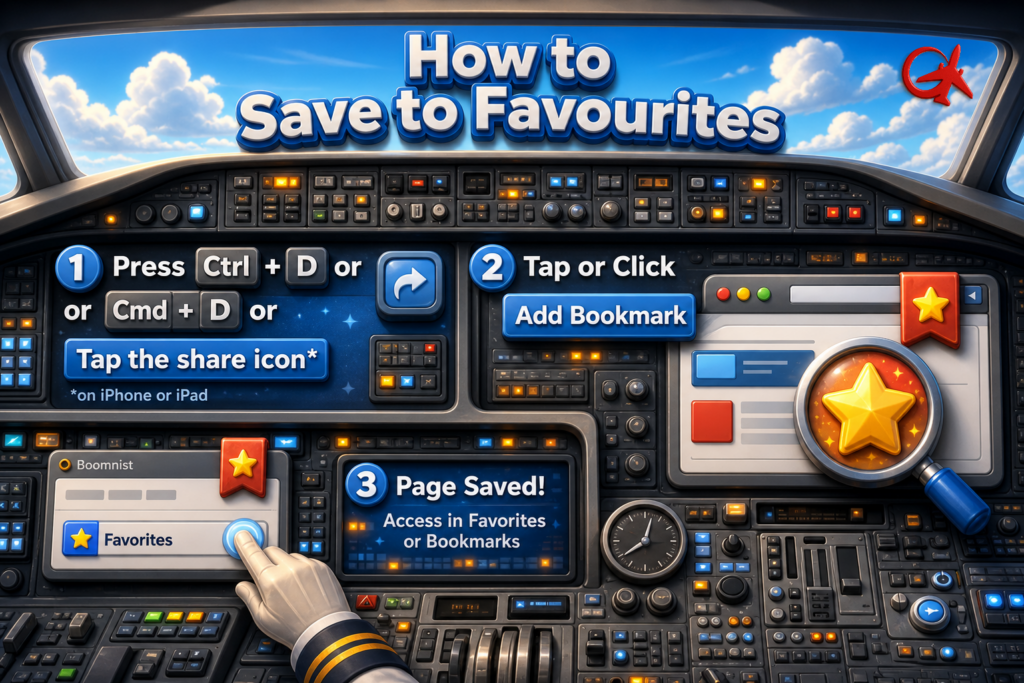
Save this page to favourites / bookmarks
Works the same in Chrome, Edge, Firefox, Brave, Opera
✅ Save to Favourites
-
Open the website
-
Click the ⭐ star icon in the address bar
(top right of the browser) -
Choose a folder (optional)
-
Click Done / Save
⌨️ Keyboard shortcut
Ctrl + D
📂 View Favourites
-
Click ⭐ or three dots (⋯) → Bookmarks / Favourites
Works in Chrome, Safari, Edge, Firefox
✅ Save to Favourites
-
Open the website
-
Click the ⭐ in the address bar
OR menu bar → Bookmarks → Add Bookmark -
Choose location → Add
⌨️ Shortcut
Command (⌘) + D
📂 View Favourites
-
Click Sidebar icon or Bookmarks menu
Works in Safari, Chrome, Edge, Firefox
✅ Save to Favorites
-
Open the webpage
-
Tap the Share icon (⬆️ square) or three dots
-
Tap ⭐ Add Bookmark or Add to Favorites
-
Tap Save
📂 View Favorites
-
Open a new tab → tap Bookmarks / Favorites
Works in Chrome, Samsung Internet, Edge, Firefox
✅ Save to Favorites
-
Open the website
-
Tap three dots (⋮)
-
Tap ⭐ Bookmark
-
Edit name/folder → Save
📂 View Favourites
-
Three dots (⋮) → Bookmarks / Favourites
Backup & support
-
If you lose internet connection: rejoin using the same Zoom link.
-
If technical issues persist, contact Avsec Resilience Point of Contact (POC) or IT support (details in your pre-course email).
-
Sessions may be recorded (course-dependent) — check with your instructor.
Clear Cookies
You clear cookies to fix problems, protect privacy, and reset how websites interact with you.
Common reasons to clear cookies:
🔐 Protect privacy – removes stored logins and tracking data
⚙️ Fix website issues – solves problems like pages not loading, errors, or broken logins
🔄 Reset websites – clears saved preferences and sessions
👥 Sign out of accounts – especially useful on shared devices
🛒 Remove outdated data – fixes issues with carts, forms, or personalization
In short: clearing cookies removes stored site data so websites start fresh.
Below is a how to guide for each browser

On desktop:
- Click the three dots ⋮ → Settings → Privacy and security → Site settings.
- Select View permissions and data stored across sites (or search for the site in the top-right).
- Find the website → Click the trash bin icon 🗑️ or Clear displayed data.
- Click ⋯ → Settings → Cookies and site permissions → Manage and delete cookies and site data.
- Click See all cookies and site data.
- Search for the site → click the arrow ▸, then trash bin 🗑️.
- Open Settings → Privacy & Security.
- Under Cookies and Site Data, click Manage Data….
- Type the site name in the search bar.
Select it → Remove Selected → Save Changes
On Mac:
- Go to Safari → Settings → Privacy → Manage Website Data…
- Search for the website.
- Select it → Remove.
On iPhone/iPad:
- Go to Settings → Safari → Advanced → Website Data.
- Search for the website.
Swipe left on it → Delete.

Continue browsing courses