Holding slides for Zoom and Teams
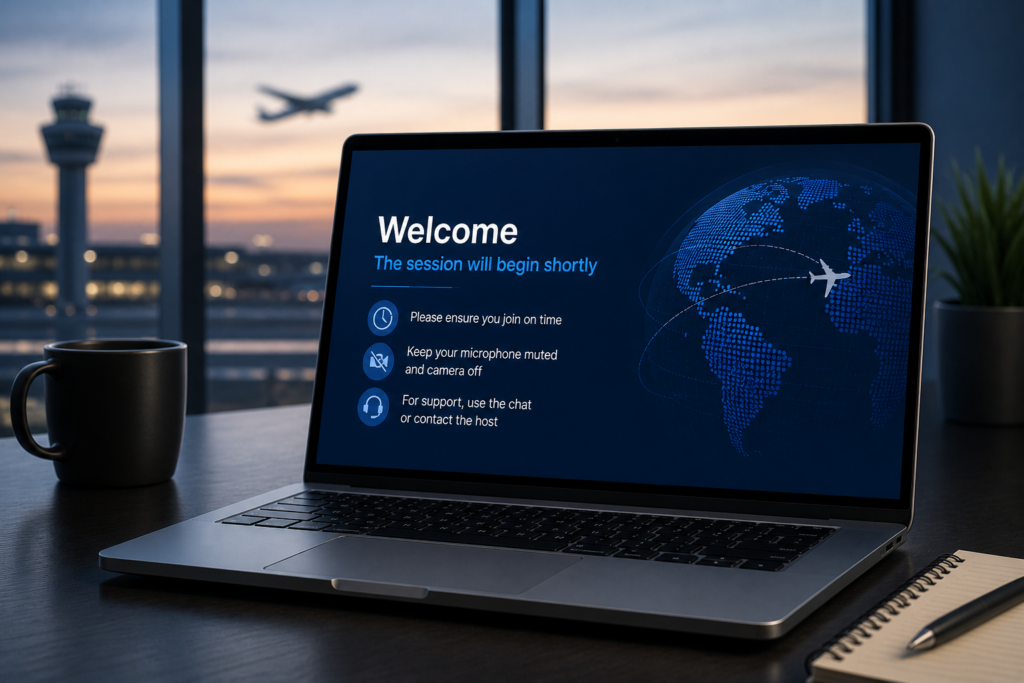
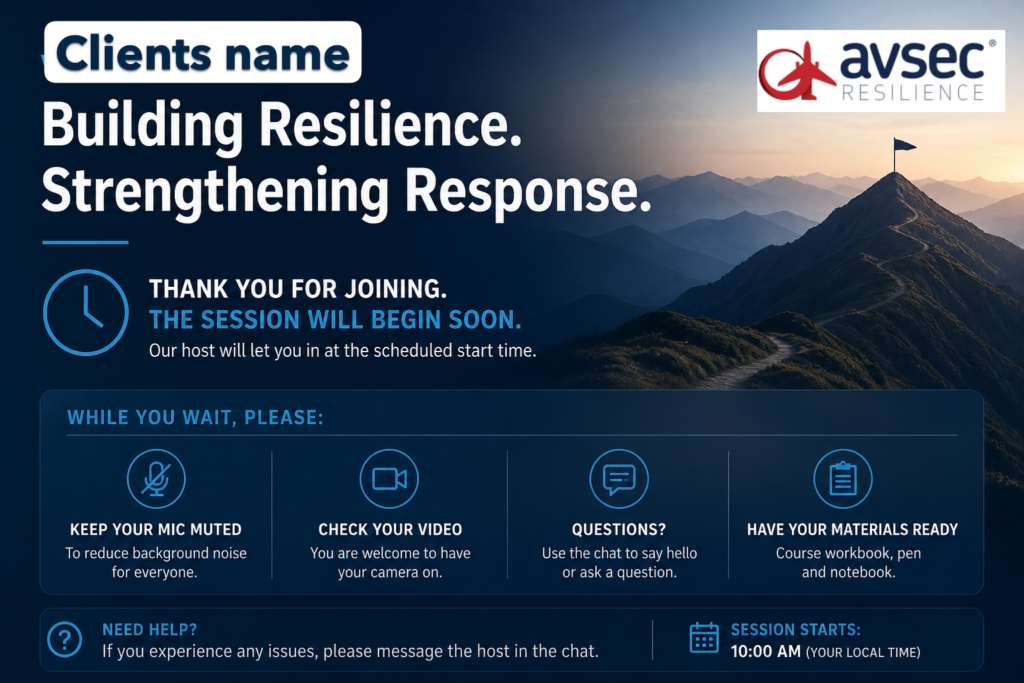
Download ready-to-use holding slides for Zoom and Microsoft Teams to support a structured and professional start to your virtual Avsec Resilience training.
These slides help set expectations, reduce disruption, and create a calm, controlled session environment.
Introduction
Holding Slides for Virtual Sessions
To support consistent, professional delivery of training, we’ve provided ready-to-use holding slides for both Zoom and Microsoft Teams.
These slides are designed to help you:
Set clear expectations before the session begins
Create a calm, structured start
Reduce early disruption and technical issues
🛠️ How to use the holding slide
Prepare in advance
Download and open the slide before your session begins.Control entry
Use the Waiting Room (Zoom) or Lobby (Teams) to hold participants until you are ready.Admit participants shortly before the start time
Typically 2–3 minutes before the session begins.Display the holding slide immediately
Share your screen so all participants see the slide as they join.Reinforce key messages
Use the chat to welcome participants and highlight key instructions (e.g. mute microphones, session start time).Start on time
Stop any background audio and begin the session promptly.
💡 Good practice
Keep microphones muted on entry
Use clear, simple instructions
Avoid overloading the slide with information
Maintain a calm, professional tone
Test screen sharing and audio before the session
🎵 Optional: background audio
You may choose to play low-level background music while participants join.
If used, ensure it is:
Appropriate for a professional setting
Played at a low volume
Stopped at the session start time
⚠️ Important
The holding slide is intended to support a controlled and professional start to your session.
It should not replace a clear verbal introduction once the session begins.
Frequently Asked Questions
A holding slide is a screen displayed at the start of a virtual session before the training begins. It confirms attendees are in the right place, provides key information, and sets expectations while participants join.
Holding slides help to:
- Create a professional first impression
- Reduce confusion and early disruptions
- Communicate key instructions (e.g. mute microphones)
- Ensure a controlled and timely start to the session
Display the holding slide as soon as participants are admitted from the waiting room or lobby, typically 2–3 minutes before the scheduled start time.
Yes. Holding slides can be used in both platforms by sharing your screen once participants enter the meeting.
A good holding slide should include:
- Session title (e.g. Avsec Resilience Course)
- Start time or “beginning shortly” message
- Simple joining instructions (e.g. mute microphone)
- Optional: materials reminder or chat guidance
Yes. Admit participants a few minutes before the start time to allow them to settle, check audio, and read the holding slide.
Participants cannot interact while in the waiting room/lobby.
Once admitted, they can:
- Use the chat
- Adjust audio/video settings
They will not see or hear the session content until you begin.
Yes, background audio can be shared once participants are admitted.
If used, ensure it is:
- Low volume
- Appropriate for a professional setting
- Stopped at the session start time
Simple animations may work, but for reliability:
- Avoid GIFs (they may not display smoothly)
- Use static slides or short video loops if needed
- Allowing participants to join to a blank screen
- Starting late
- Overloading the slide with too much information
- Leaving microphones unmuted
- Speaking before all participants have joined
Yes. The holding slide supports the start of the session but does not replace a clear verbal introduction by the facilitator.
No, but it is strongly recommended as part of good practice for delivering structured, professional virtual training.
Continue Looking: